Meet the widgets
Below is an itemized list of all the useful little widgets that make the Sandhills editor so flexible and easy to use.
When you click the ADD A WIDGET button, you will get a pop-up that is divided into tabs that house different groups of widgets. We are constantly developing widgets, so don’t be surprised when new ones pop up. The basic widget tabs we have right now are:
Content Widgets
Editable Area Widget
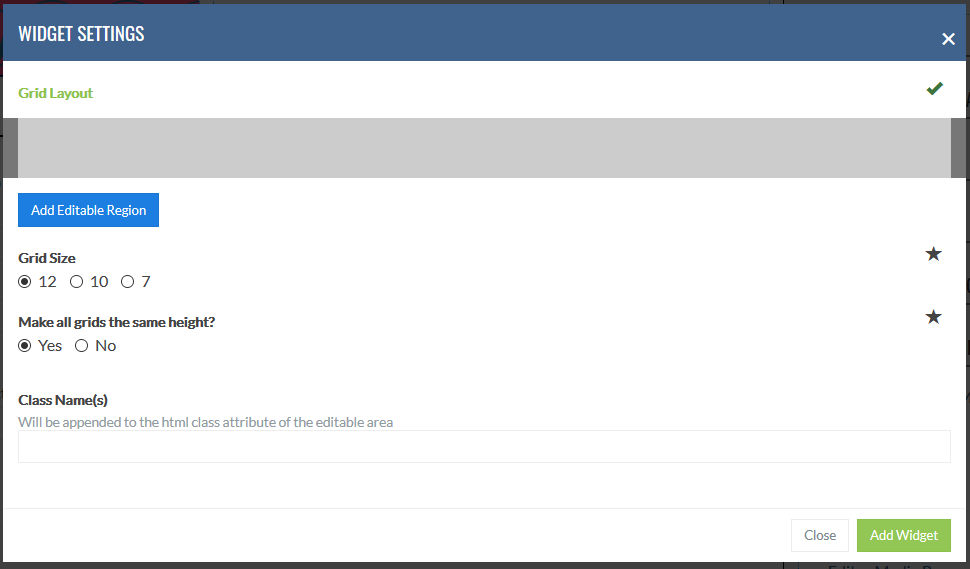
This adds fully editable regions with no backgrounds or special classing. Perfect for most standard content areas.
These fully editable regions allow you to add text, photos, videos, links, tables, or anything else you want. You can use the full Sandhills CMS editor to add any content, media or HTML.
No Editable Regions are inserted by default. Click the “Add Editable Region” button to add an Editable Region to the widget. It will be only one column wide. You can resize the Editable Region by dragging the lower right corner to the correct size. You may move it anywhere in the 12 column grid by dragging it to that position. The CMS will also allow blank spaces without Editable Region if your design calls for that.
Editable Regions only expand to the right. If you need to make a right Editable Region bigger, resize the Editable Region on the left to make it smaller, then move the right Editable Region up next to it, then expand the right Editable Region to the correct size.
-
Grid Size
Each Editable area is 12 columns in width and can be subdivided by adding more editable areas. Twelve columns is the most flexible grid system as you can choose to have 1,2,3,4,6, or 12 equal size (or unequal size) editable regions. If you do need an odd number like 5 or 7, you may change the grid structure by selecting the appropriate option. Each editable area is mobile responsive and will stack in order on mobile devices.
-
Make all grids the same height?
This uses Javascript to set the height of each Editable Region so that all of the regions are expanded to the same height as the tallest region in the widget. This is great for graphical 3 or 4 column rows. Same height does not apply to the stacked mobile (XS) breakpoints.
-
Class Name(s)
This adds a lot of flexibility to this tool. You can add any class you choose. If you need more than one class, just add them with a space in between, just like if you were adding class in a class="one two" tag. Any defined class should work, so set them up in your style.css file and reuse them over and over.
Editable Area Backgrounds
This is by far the most flexible and powerful editor in the arsenal. It’s also the most complex. However, once you understand how it works, you can do almost anything you can think of with this tool.The Grid Pane
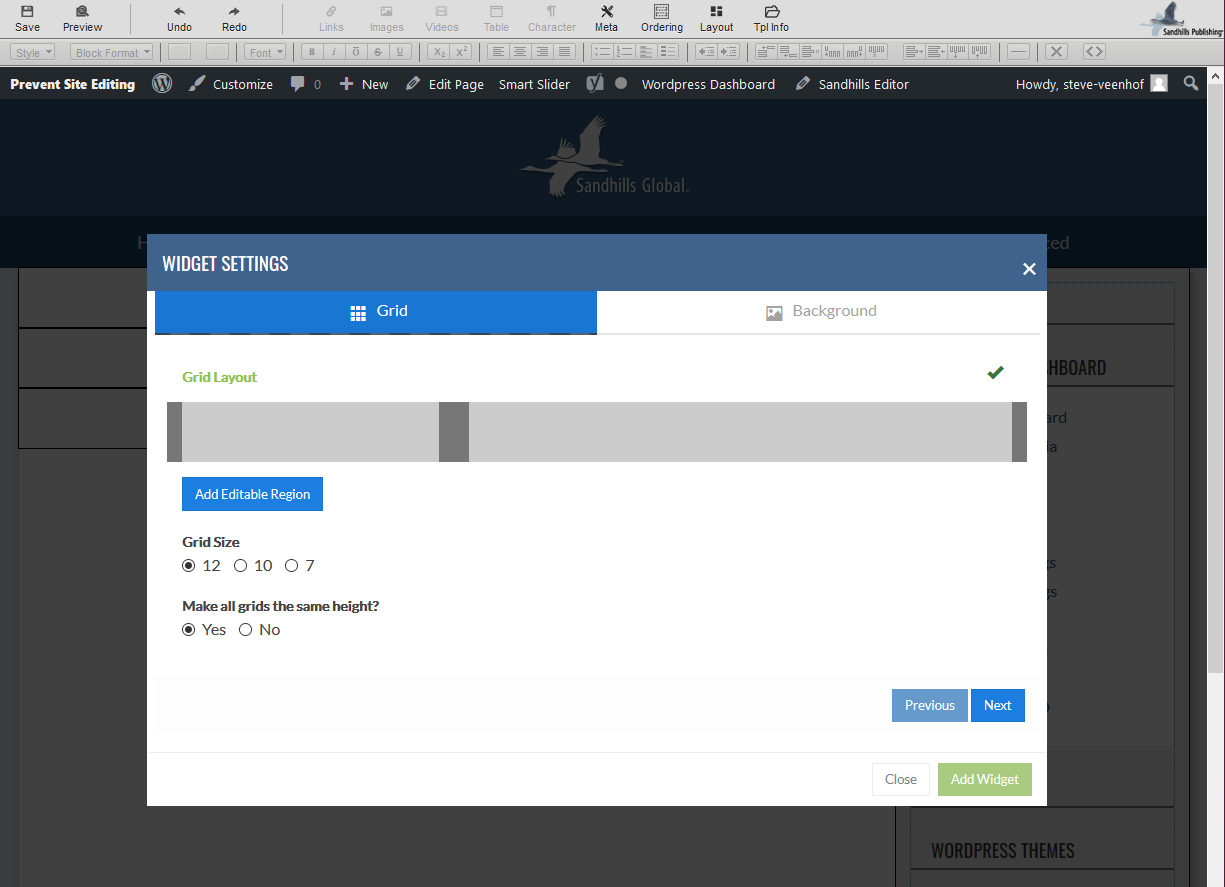
This is a two part tool. The first screen is almost identical to the standard Editable Area widget. You set up the grid of content areas on this first screen.
-
Just click The
ADD EDITABLE REGION
button until you have the number of areas your want.
-
Then drag the new boxes until they are the width you want them. They will snap to the grid size chosen.
-
Choose a grid system (usually you will leave this at 12 since it is the most flexible.
-
Lastly, choose whether you need them to be the same-height or not.
- When you are done, click the blue NEXT button.
The Background Pane
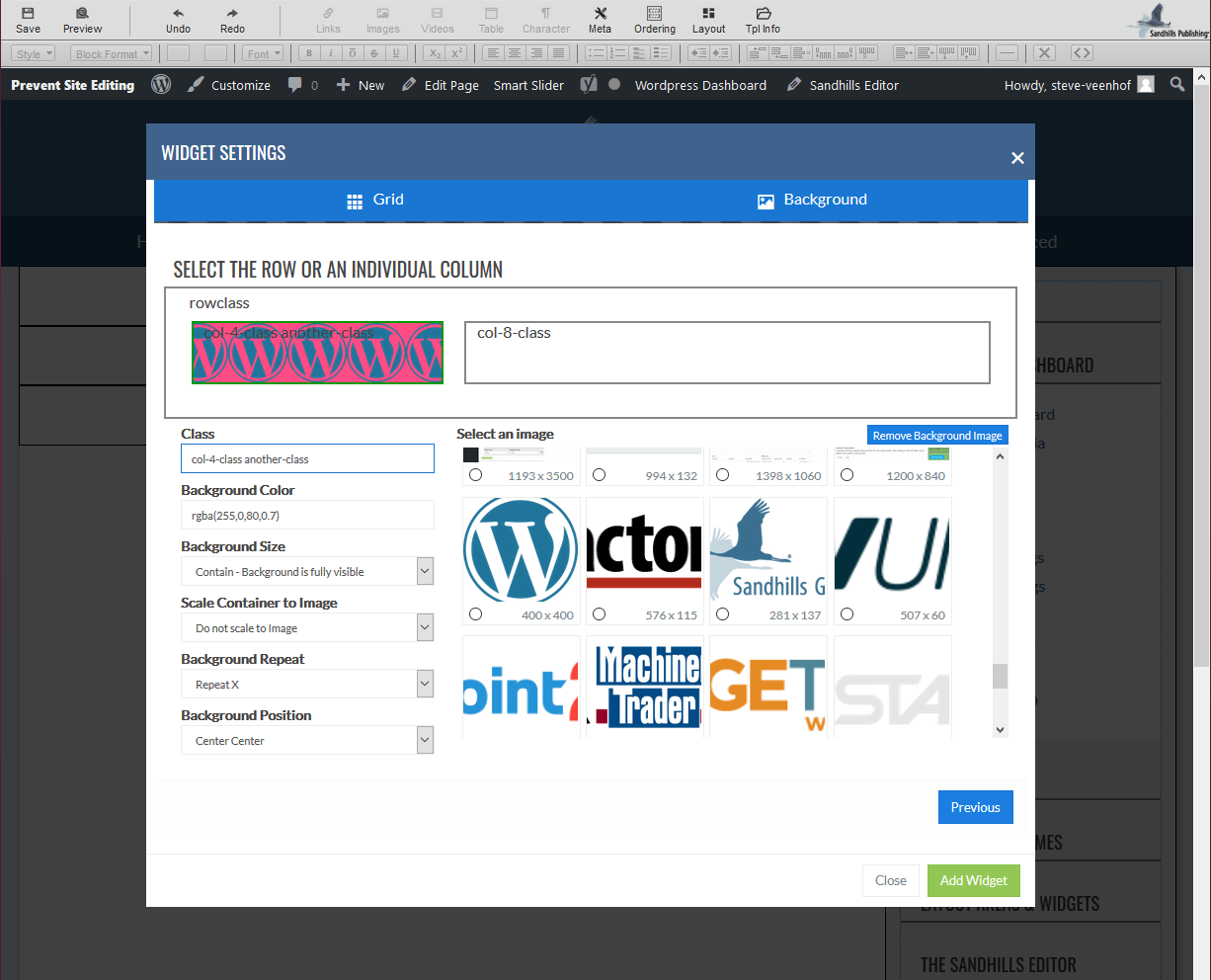
This screen is where the magic happens. Here you can add all sorts of stuff. You can assign custom classes to your Editable Region
-
The Rows and Columns
At the top is a graphical representation of all the Widget’s areas. Click on each one separately to set the individual settings for that particular . The background container (.row) can also have backgrounds and classes assigned to it. Because it is the containing element, the choices you select for each internal Editable Region (column) can affect the background as well (and vice versa).
To add a background image, just click on the correct box (the border will turn green) and then click on the correct image inside the media gallery box. Once you’ve chosen an image, it will display as a background image in that element. You must have your images already saved to the media gallery before you get here. If you forget, just set it up as you would normally with the image or use a placeholder. You may come back to edit these settings or change images once the page has been saved.
-
Classes
Simply type in your class names and they will be added to this . You may add as many as you like. Think of this as filling in the quotes in class=” “. You may use these classes as you would any other class, including adding special rules for .class:hover or any animations/transitions. These classes are what makes this tool unique and extremely powerful. Just add the classes to your style.css file and style away!
-
Background Color
You may use hex values for solid colors or RGBA values to create color overlays. If you want to add a gradient, we recommend using a class. One trick is to use RGBA colors on the Editable Region to colorize a desaturated photo or background graphic set on the background container. You can also use the same trick to darken or lighten a high-contrast photo so that your text / content is more legible.
-
Background Size
This sets the CSS property background-size:. The choices here are Cover (fills area and crops off any excess photo) or Contain (scales image to be fully visible). If you’d like to use any other background-size properties, we recommend using classes.
-
Scale Container to Image
This uses Javascript to get the size of the background image you selected and then make sure that the container is tall enough to display the whole image. This means you do not have to keep the container open with content. It is extremely helpful if you want to add text or other graphics over the top of a background image as it responds to different screen sizes.
-
Background Repeat
Pretty standard. Repeat (tiles image), Repeat X (horizontal), Repeat Y (vertical), No Repeat (image won’t repeat).
-
Background Position
This is how the image will respond if it is larger or smaller than its container. This is mainly for mobile, where images tend to get cropped. The first is vertical alignment (Top Center, Bottom), the second is horizontal alignment (Left, Center, Right).
-
Select Image / Remove Image
This was pretty much covered above. Select the container you want to add a background image to, then click on the image. The radio button will be selected, the background will turn green, and the image will show up in the corresponding box. To change the background image, just click a different photo in the media gallery. You will need to make sure the images are already in the gallery before you get here or come back and edit them later. The image sizes are displayed (in px) in the lower right corner for your reference. Pretty straight forward.
If you would like to remove the image from that element, there is a blue “Remove Background Image” button above the gallery box. Just click it and it will be like it never happened. This is particularly helpful if you’ve accidentally clicked the wrong box.
Here is what the above widget example looks like on the page. Below is the same widget, but I’ve modified the Page Settings to have a margin of 0.
This is an incredibly simple, but powerful tool. It allows you to drop custom HTML code into any widget position in the editor.
This was originally developed for a customer as a way to add a weather widget script into a layout area in the editor, but the uses are virtually unlimited. If you can write the code, you can now insert it into the editor. This is a great way to add static content to multiple pages. It accommodates any file that can be displayed on the website including PHP, HTML, Scripts, etc.
Just save your file into the SANDHILLS_FILES folder in your theme. The Editor will see the file and you can then use the new file widget to add that code to any page. Just choose the file name from the automatically generated drop-down list.
To use the file widget
-
Write your code
-
Save your file into the
SANDHILLS_FILES
folder in your theme.

-
Add the widget wherever you want the code to display in your site.
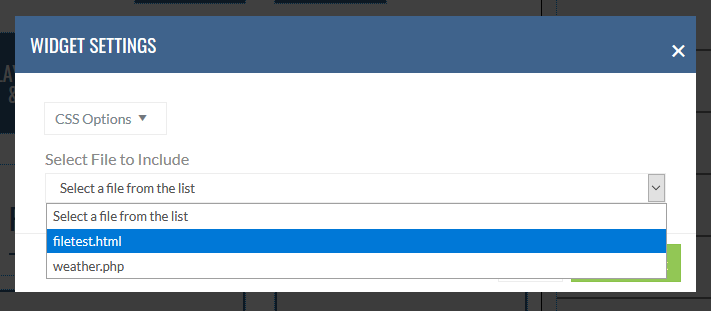
- You're done! If it doesn't show right away, it will after you save the page.
To see the weather.php file displayed at the bottom of this page, click here .
Pop-Up Widget
The pop-up widget creates a simple pop-up window on a specific page that can be edited with the full range of editor features. You can set up different editable areas, just like any content area. You can add or edit content as you normally would, it just displays in a pop-up.
- This pop-up will only display on the page you add it to. It is not a site-wide notification. (See Notification Center for that.)
- Once you dismiss the pop-up, it will go away until the session is refreshed.
- The entire pop-up is classed so you can customize the way the pop-up looks to match your site.
To add a pop-up to the page, click
ADD A WIDGET
like normal and select
POP-UP
from the
CONTENT
tab.
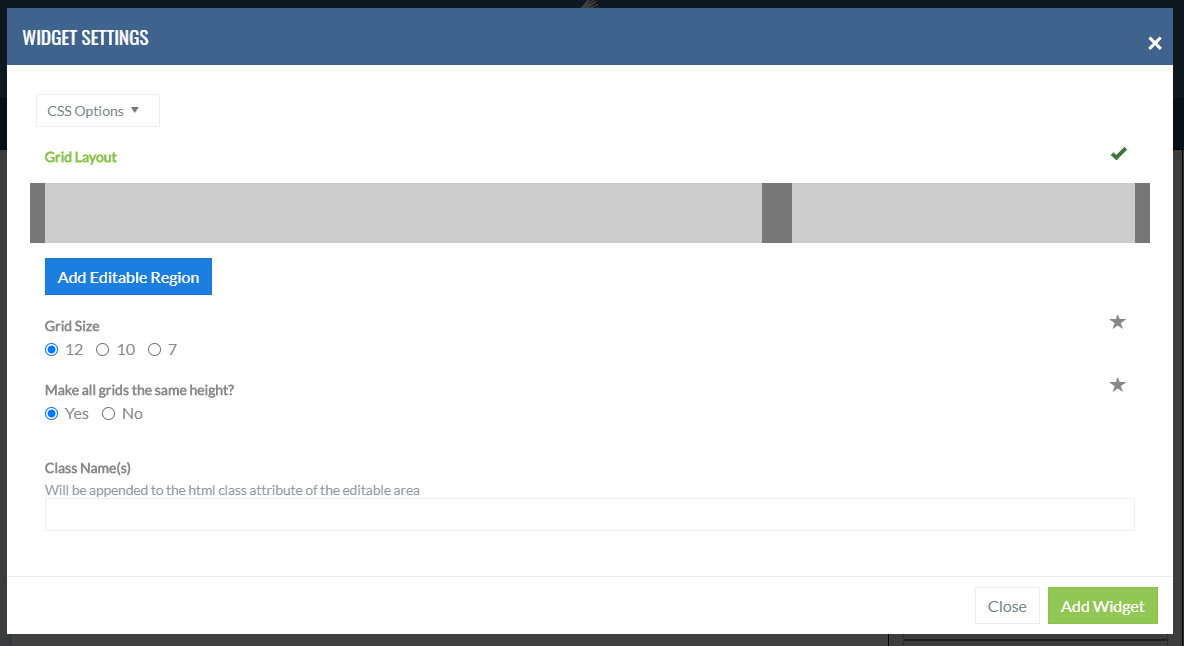
The settings pane is basically identical the the EDITABLE AREA widget, so it should look familiar. Set up your editable regions and your grid and click ADD WIDGET.
When the settings modal goes away, you should see a blank pop-up with your editable areas set up waiting for content.
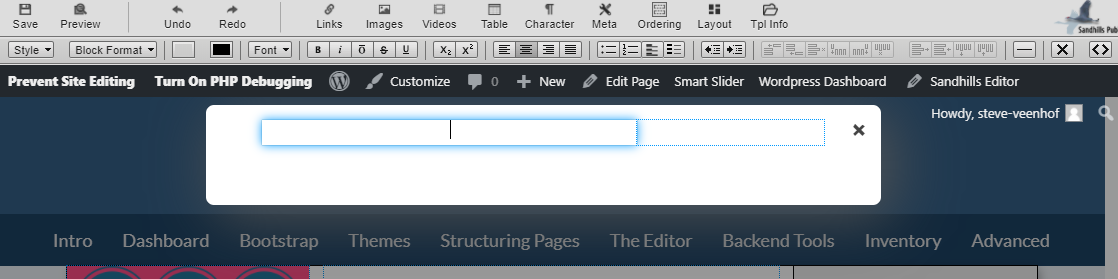
Add your content as you normally would in any editable area.
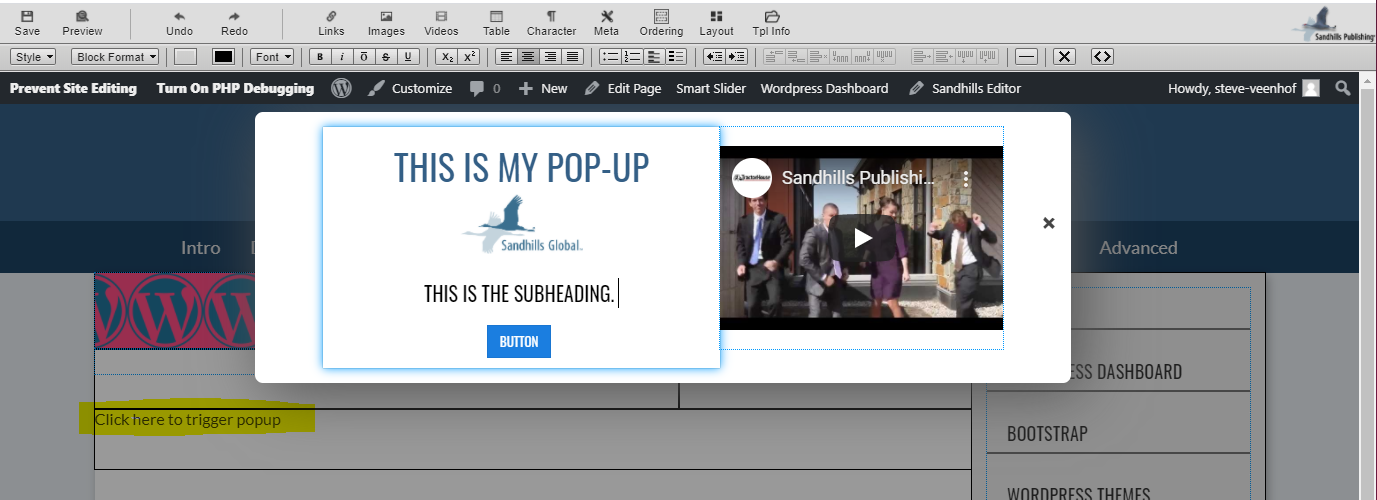
As you can see I have headings, images, button and a video in the pop-up and it works fine.
Also notice the text in the document "
Click here to trigger popup.
" This is how you can manually trigger the pop-up to make edits. It displays in-line wherever you added the widget, but will be hidden and collapse completely when you are logged out.
Shortcode Widget
This widget is adds tons of flexibility because it allows us a way to add 3rd party plugins to the site. Most WordPress plugins are managed on the back of the site and use a special short code to tell WordPress itself where to place the output of the plugin.
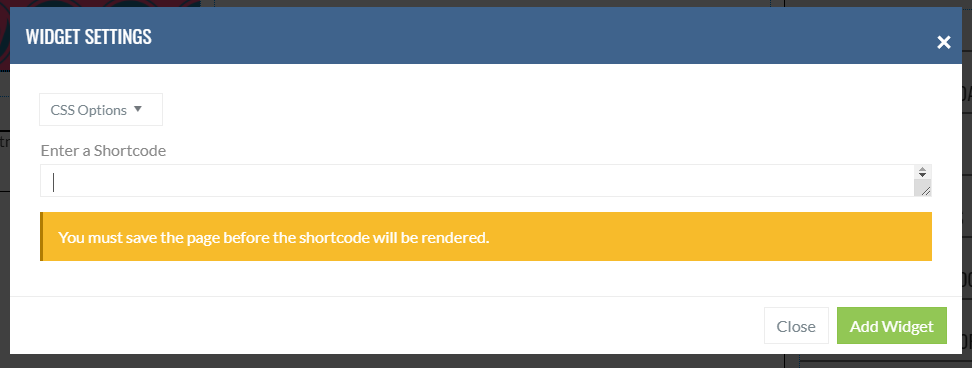
Our widget is extremely simple. Just add the widget to the page, paste the shortcode from the plugin in the pop-up admin box, and save the page. When the page reloads, it will pull whatever the output from that 3rd party plugin is and render it on the page where you placed the widget.
Form Widgets
Form Widgets hold our contact form widgets and variations thereof.
While its name is contact form, you can actually use this to put any type of form anywhere on the site. This form both emails the designated recipients and saves the submissions as a post in the database. Form widgets can be added to sidebars to display on every page or individual pages as needed.
The Form widget is a three part widget. The first tab sets up the functional settings for this instance of the widget (title, where it sends, color of ReCaptcha, etc.). The second tab allows you to customize the form itself by changing labels and adding and removing fields. The third tab lets you arrange the questions on the screen how you would like based on the 12 column grid.
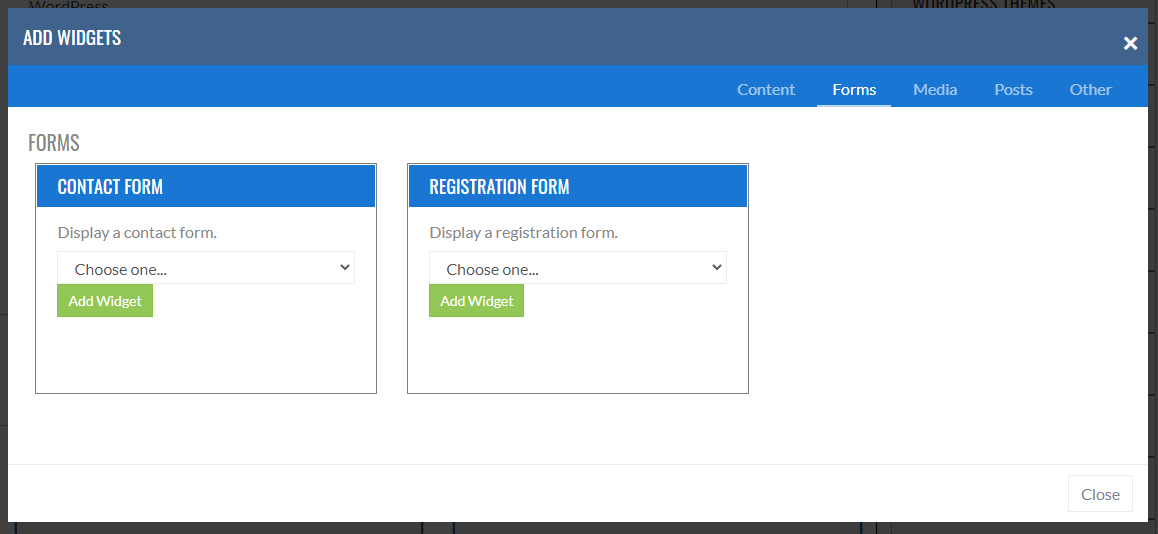
There are currently two different types of form widgets, but they are very similar in function.
-
The
CONTACT FORM
widget is the general workhorse you will use 99% of the time.
- The REGISTRATION FORM widget is specialized version of this widget that has Currency Pay integration built in. It is specifically built to allow people to register and pay for conferences and other events. We will not go into detail on this one as it is a special use case, but it you understand the contact form, this should feel familiar.
Adding a Contact Form
The contact form is divided into steps or tabs.- The first lets you set up the individual settings for a form, such as it's title, where it's emailed to, etc.
- The Second is where you will create the form fields. This is the bulk of the work.
- The Third allows you to rearrange and format the form based on the Bootstrap grid system.
FORM SETTINGS TAB
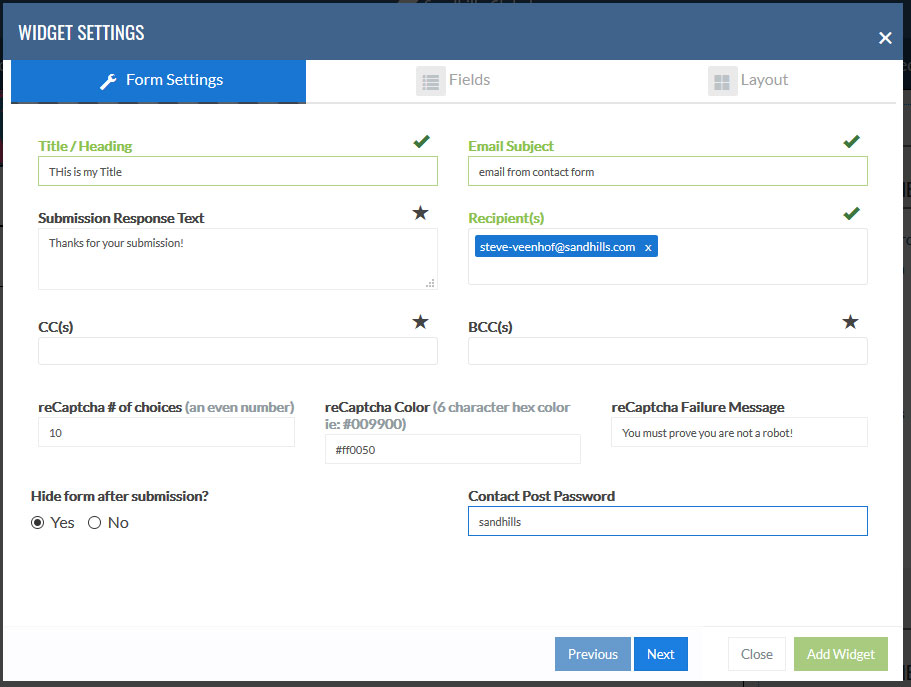
The Form Settings box lets you add the functionality to the form.
-
The
title / heading
that displays at the top of the form
-
The
subject line
of the email that is sent to the clients
-
The
addresses
the form sends to by default (To, CC, BCC)
-
The
confirmation message
that displays on the screen after the user submits the form.
-
The
ReCaptcha color
behind the icons (default is blue)
-
The
ReCaptcha failure message
if the user does not pass
-
The Contact Post Password
is the password people use to
see
the contact form submission posts in the back end of WordPress (default is “sandhills”). Customers will still receive emails of the contact submissions. However, we also automatically save all contact submissions as posts in the WordPress backend. That way if a client ever deletes one or has issues with email, they can still access their contact form submissions.
The Password you set is necessary to retrieve the encrypted posts and view them in WordPress. The default password is set to “sandhills.” We recommend leaving it as the default unless the client specifically requests it be changed.
A password is not required for the email(s) that are sent to the client.
Form FIELDS TAB
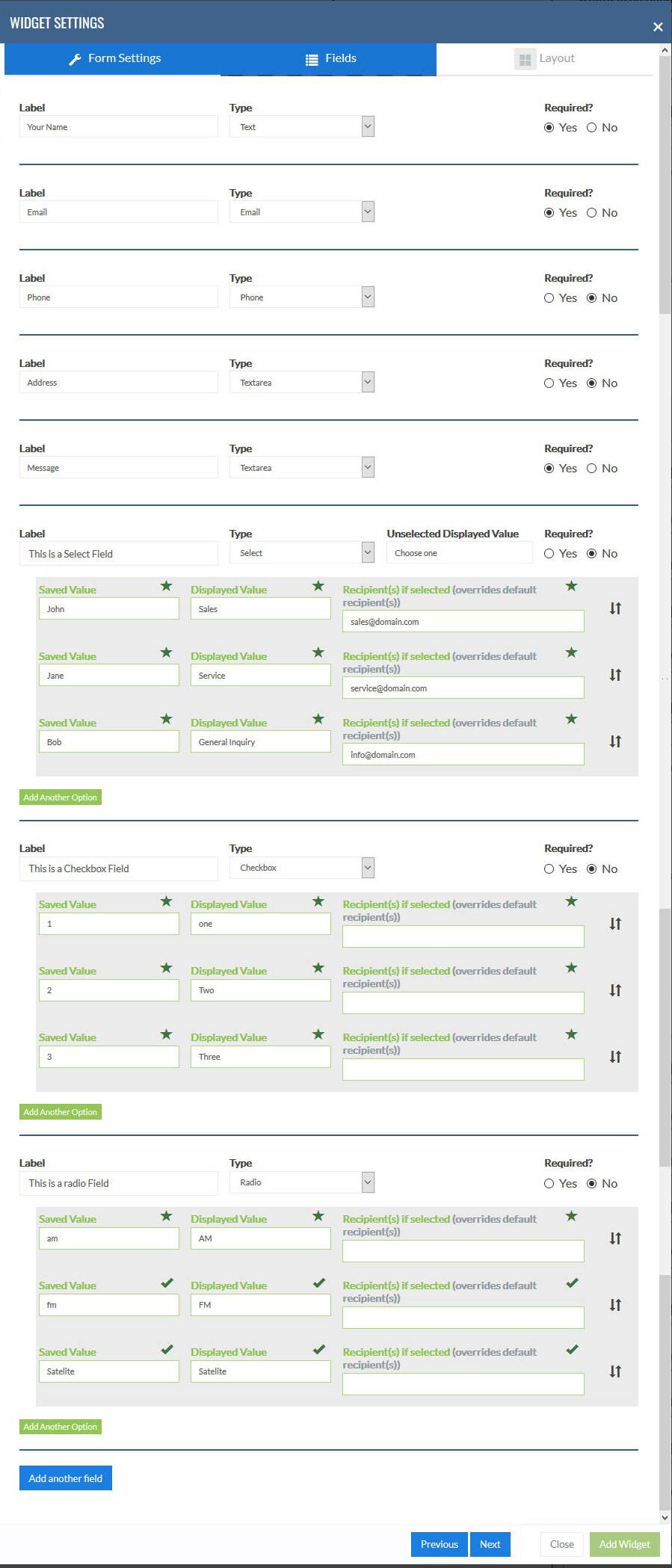
The Form Fields is the next step and this is where you can customize the form itself and set which fields are required.
It defaults to having NAME, EMAIL, PHONE, ADDRESS, and MESSAGE, but those can easily be changed. You can change the label (The question you are asking users), the form field type (Text, Email, Phone Text Area, Checkbox, Radio Button, or Select Box), and whether that field is required or not.
Removing Items
If you don’t need a field, just blank out the label and it will disappear from the front of the form when it is saved.
Label
This is the label that displays above the input field. It is basically the question you are asking users. There are no requirements on the label.
Type
This chooses the type of input field displayed and the kind of validation for required questions.
- Text field (single line of any text)
- TextArea field (multiple lines of any text)
- Email field (validates an “@” symbol and “.com/.net/.etc”)
- Phone field (numbers only)
- Checkbox (see below)
- Radio Button (see below)
- Dropdown Selection Box (see below)
Required
If set to “no” the form will not validate that field.
Add Another Field Button
Click this to add another question to the Form.
Adding Checkbox Questions to your Form
Adding any multiselect is a multi-part operation. The first step is to fill out the label and choose CHECKBOX from the Type list. Once you do that, you should see your option fields show up.You will see that each Option Line you create is made up of 3 parts, SAVED VALUE, DISPLAYED VALUE, & RECIPIENT (optional)
-
Saved Value
This is the value that is actually saved in the database, emailed to the client, and saved in the Contact Submission Post in the backend of WordPress. This does not have to match the Displayed Value, but it usually will. Both Saved Value and Displayed Value are required.
-
Displayed Value
This is the value that is actually displayed to the customer on the front end of the site. This does not have to match the Saved Value, but it usually will. Both Saved Value and Displayed Value are required.
-
Recipient(s) if selected
This is totally optional and will only be used in certain circumstances. However, it’s an incredibly useful feature for clients. This will allow you to overwrite the default recipient on the form and send the email to someone else if this value is selected. This is great for general contact forms to get directed to the correct department (sales, customer service, parts, etc.).
This field will likely be left blank on most forms, but if you do fill it out, both saved and displayed values are required as well. You may add multiple recipients by listing them in a comma separated format. (ex: email1@domain.com, email2@domain.com)
-
Add Another Option Button
Clicking this button will add another row to the Options List for you to fill out. If you add a row and don’t need it, just leave it blank and the field will not display on the form.
Adding Radio Button Questions to your Form
Adding any multiselect is a multi-part operation. The first step is to fill out the label and choose RADIO from the Type list. Once you do that, you should see your option fields show up.You will see that each Option Line you create is made up of 3 parts, SAVED VALUE, DISPLAYED VALUE, & RECIPIENT (optional)
-
Saved Value
This is the value that is actually saved in the database, emailed to the client, and saved in the Contact Submission Post in the backend of WordPress. This does not have to match the Displayed Value, but it usually will. Both Saved Value and Displayed Value are required.
-
Displayed Value
This is the value that is actually displayed to the customer on the front end of the site. This does not have to match the Saved Value, but it usually will. Both Saved Value and Displayed Value are required.
-
Recipient(s) if selected
This is totally optional and will only be used in certain circumstances. However, it’s an incredibly useful feature for clients. This will allow you to overwrite the default recipient on the form and send the email to someone else if this value is selected. This is great for general contact forms to get directed to the correct department (sales, customer service, parts, etc.).
This field will likely be left blank on most forms, but if you do fill it out, both saved and displayed values are required as well. You may add multiple recipients by listing them in a comma separated format. (ex: email1@domain.com, email2@domain.com)
-
Add Another Option Button
Clicking this button will add another row to the Options List for you to fill out. If you add a row and don’t need it, just leave it blank and the field will not display on the form.
Adding a Dropdown Selection Field Questions to your Form
Adding any multiselect is a multi-part operation. The first step is to fill out the label and choose SELECT from the Type list. Once you do that, you should see your option fields show up.You will see that each Option Line you create is made up of 3 parts, SAVED VALUE, DISPLAYED VALUE, & RECIPIENT (optional)
-
Saved Value
This is the value that is actually saved in the database, emailed to the client, and saved in the Contact Submission Post in the backend of WordPress. This does not have to match the Displayed Value, but it usually will. Both Saved Value and Displayed Value are required.
-
Displayed Value
This is the value that is actually displayed to the customer on the front end of the site. This does not have to match the Saved Value, but it usually will. Both Saved Value and Displayed Value are required.
-
Recipient(s) if selected
This is totally optional and will only be used in certain circumstances. However, it’s an incredibly useful feature for clients. This will allow you to overwrite the default recipient on the form and send the email to someone else if this value is selected. This is great for general contact forms to get directed to the correct department (sales, customer service, parts, etc.).
This field will likely be left blank on most forms, but if you do fill it out, both saved and displayed values are required as well. You may add multiple recipients by listing them in a comma separated format. (ex: email1@domain.com, email2@domain.com)
-
Add Another Option Button
Clicking this button will add another row to the Options List for you to fill out. If you add a row and don’t need it, just leave it blank and the field will not display on the form.
LAYOUT TAB
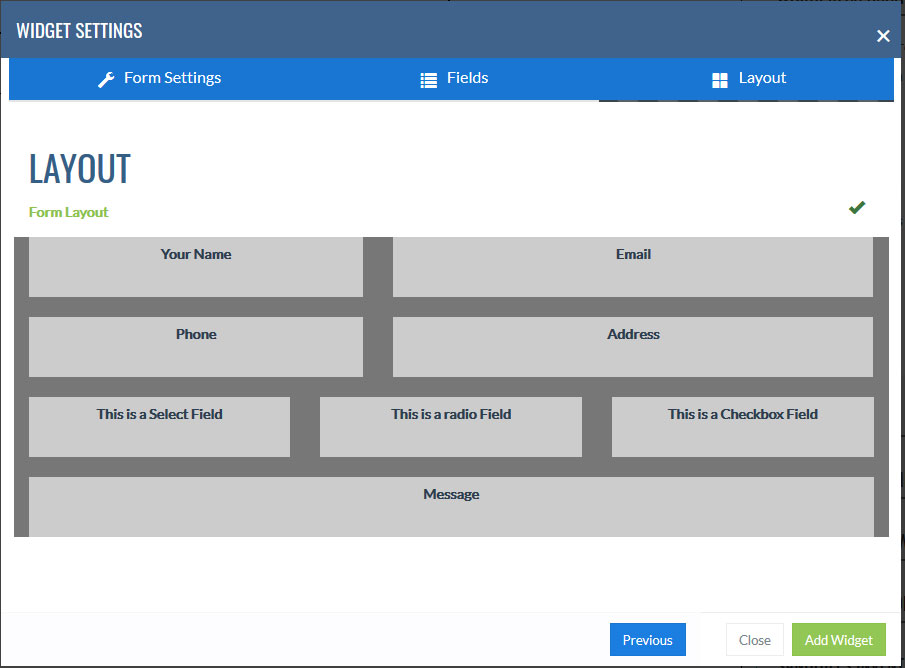
The Layout Tab allows you to rearrange and layout the form questions to better fit the page you are designing.
The tab starts out with each question represented as a box that spans a full 12 column row. You may resize the question area and drag them around the page as you see fit. You can leave blank spaces in the structure to create whitespace.
The questions are responsive and will wrap to their container. Keep in mind when laying out your page that this only represents the width, not the height of each element. Below is an example of the same form from above, just restructured to a new layout.
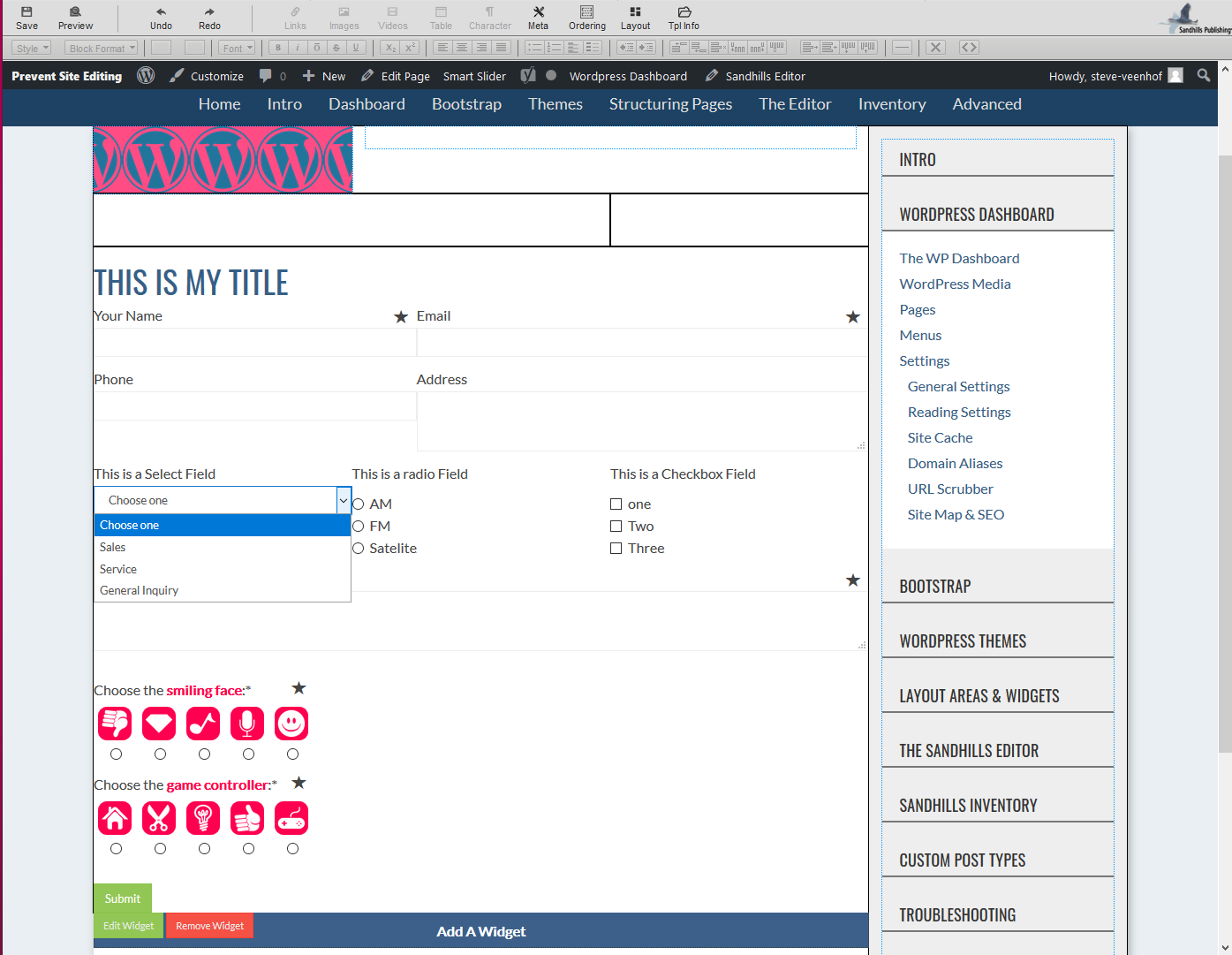
You can see that I have not only changed the width of the elements, but completely changed the order that they will display on the page. Below is the actual form as it is rendered on the page (with default styling).
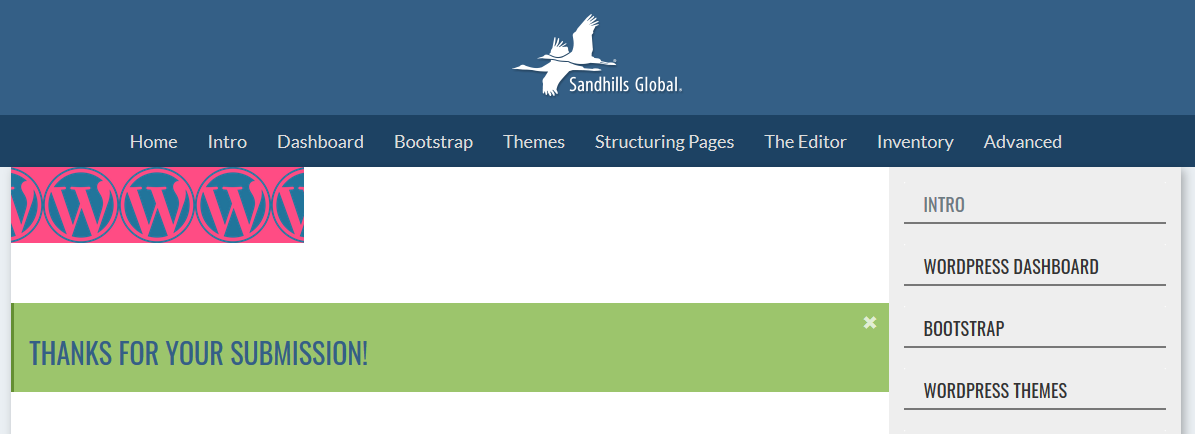
When a user fills out the form and clicks submit, the form will disappear and display a thank-you message. This is editable in the first tab in the Submission Response Text field.
Media Widgets
Media widgets house all our slideshows, galleries, and any other image-based widgets.
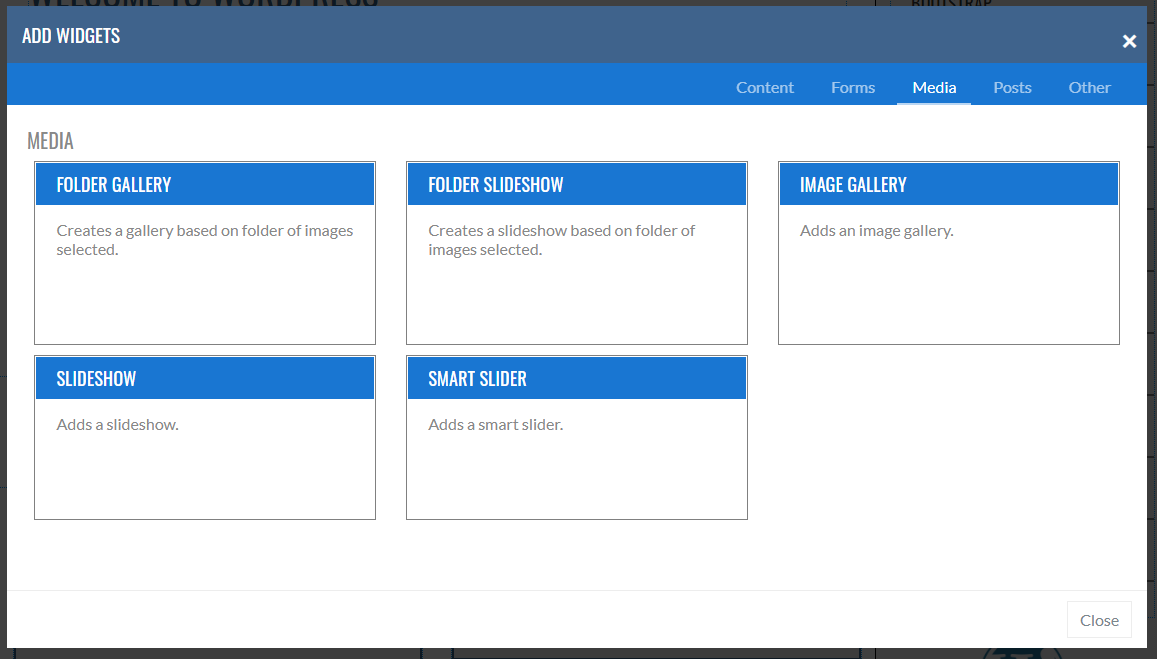
The difference between FOLDER GALLERY/SLIDESHOW and the IMAGE GALLERY/SLIDESHOW is in how you select the images that display in the gallery/slideshow.
In a FOLDER Gallery/Slideshow , you set up your folders in the MEDIA > FOLDER VIEW page of the WordPress Dashboard. Any image in that folder is automatically added to the gallery or slideshow. This means customers don't have to go in and edit the widget on the page to update it's content, just change the images in the correct folder.
In a IMAGE Gallery/Slideshow , you select individual photos you want from the standard WordPress mashup of all images ordered by most recently added first. To update the slideshow, you must edit the widget.
The Folder Gallery is an easy way to have an image gallery on a website. Customers can easily add and remove photos fro the FOLDER VIEW page of the Dashboard and the gallery automatically updates as the pictures in the folder change.
As with any gallery, if you click the image it will open full-size in a lightbox and show titles and captions.
It's easy to add a gallery to a site. Just click the ADD A WIDGET button and choose the FOLDER GALLERY from the MEDIA tab.
Selected Folder
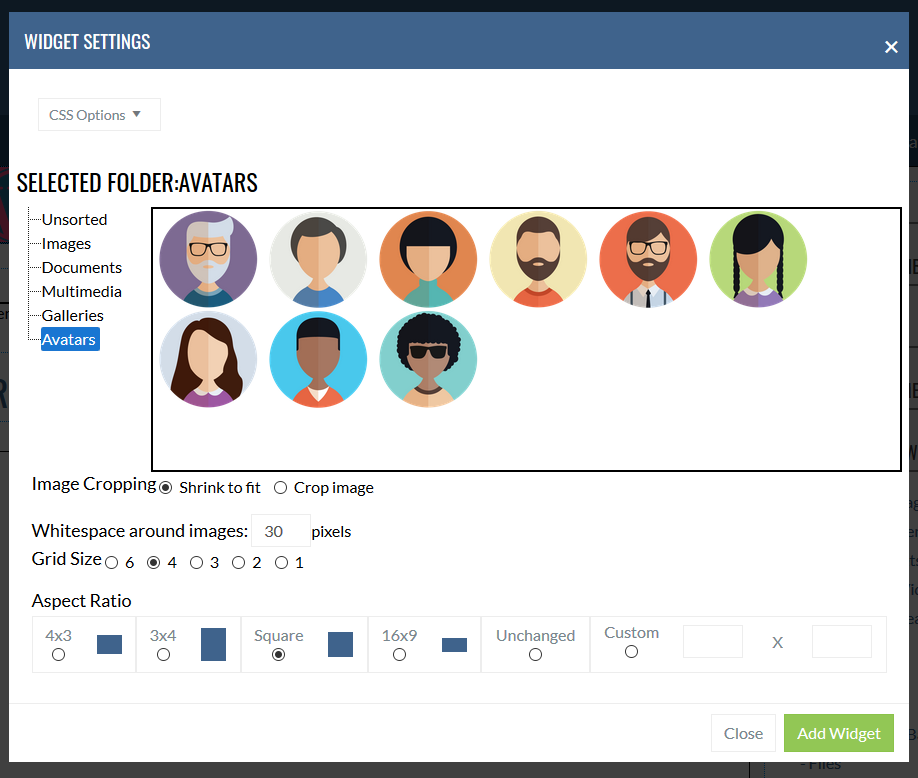
Choose the Folder from the file tree on the left (in this case, Avatars). You will see a preview of the images on the right.Image Cropping
-
Shrink to Fit:
The image will scale down to be as large as possible inside the aspect ratio without cropping off any of the image. Works great for a grid of logos or graphic elements.
-
Crop Image
:
The image will fill the aspect ratio and crop off any overflow. This gives you a nice crisp grid. Usually works best with real photos as people are used to the odd cropping.
Whitespace around images
The total amount of whitespace between images. The tool cuts the number in half and assigns to all four sides to create even spacing around the image.
Grid Size
Number of images per line
Aspect Ratio
This is the individual shape of each of the containers the images are bound in.
-
4x3, 3x4, Square, 16:9
These are fairly normal aspect ratios for images. Choose the dimension that best fits your design or your images.
-
Unchanged
This will equally space the images and center them as best as it can in each row. Each image will be fully visible. You get some weird alignment and spacing if you have widely varying images sizes though.
-
Custom
Use this to create a photo grid that conforms to your own aspect ratio that best fits your particular images.
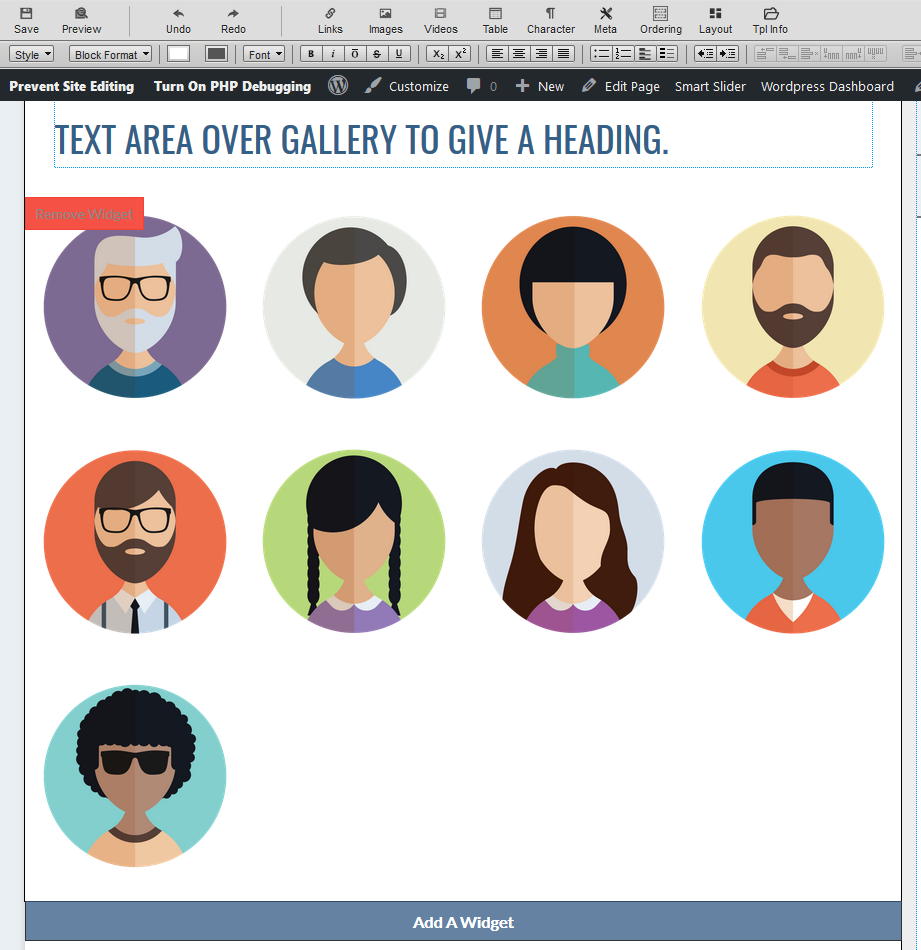
Below is the grid of the images from the settings above. Notice that we do have 30px of spacing between images, but the margin on the left and right is half that to make the images look the most centered.
Folder Slideshow
The Folder Slideshow is similar to the Folder Gallery, but there are a few differences. This is really designed for simple slideshows, or slideshows where the customer will need to edit them regularly. For more advanced features, we recommend using Smart Slider .
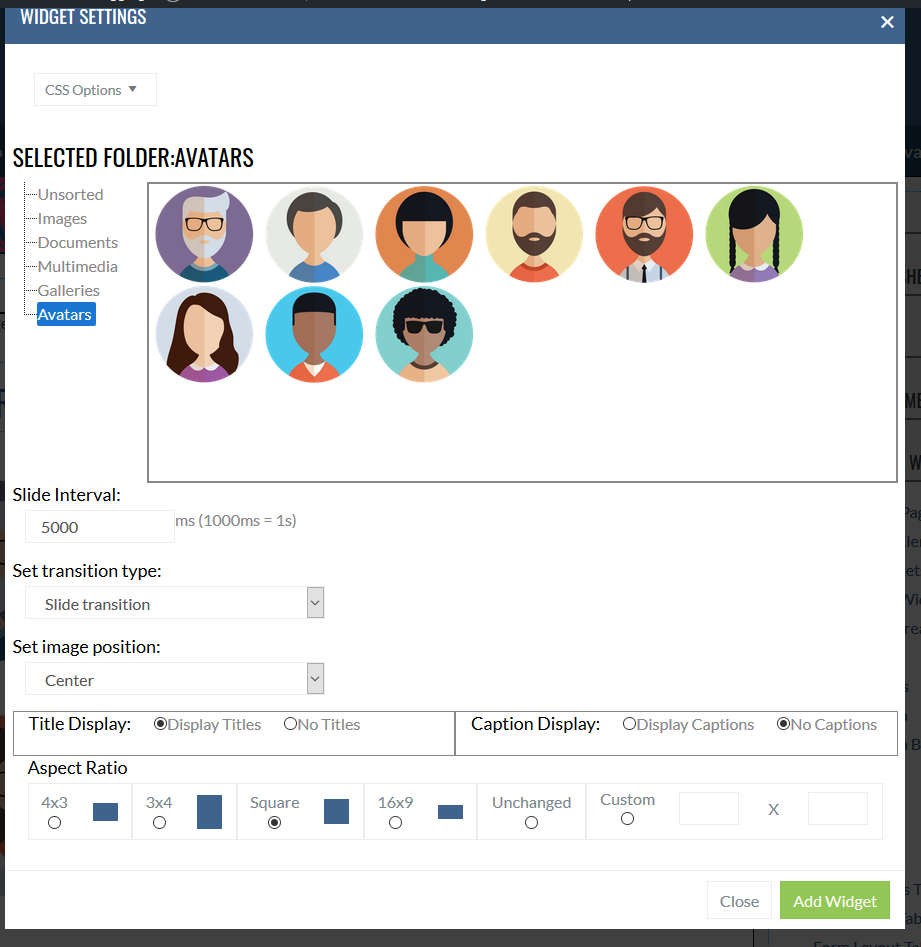
Selected Folder
Choose the Folder from the file tree on the left (in this case, Avatars). You will see a preview of the images on the right.
Slide Interval
The Slide Interval is how long each slide is presented before the next one comes in. It is set in milliseconds (1000 milliseconds = 1 second). So if you want something on the screen for 3.5 seconds, you would set this to 3500.
Set Transition TYPE
This just sets the type of animation between slides.
-
No Transition
- No transition, the slides just instantly replace each other
-
Slide Transition
- The next slide flies in from the right to push the old one out.
- Fade Transition - The new slide fades in to replace the old slide.
SET IMAGE POSITION
This just sets the position of the image anchor. You can choose TOP, BOTTOM, or CENTER. This is important as we set the width to 100% and anything that falls outside the defined box parameter will be cropped off.
Center is likely the one you would choose most often, but it depends on where the focal point for your images are.
Title Display
Chooses whether you want to display the image's TITLE. This can be set in the MEDIA page of the Dashboard.
Caption Display
Chooses whether you want to display the image's CAPTION. This can be set in the MEDIA page of the Dashboard.
Aspect Ratio
This is the individual shape of each of the containers the images are bound in.
-
4x3, 3x4, Square, 16:9
These are fairly normal aspect ratios for images. Choose the dimension that best fits your design or your images.
-
Unchanged
This will equally space the images and center them as best as it can in each row. Each image will be fully visible. You get some weird alignment and spacing if you have widely varying images sizes though.
-
Custom
Use this to create a photo grid that conforms to your own aspect ratio that best fits your particular images.
Below is the slideshow from the settings above used in conjuction with text. It's an unusual way to use a slideshow, but works best for the aspect ratio of the images in the folder.
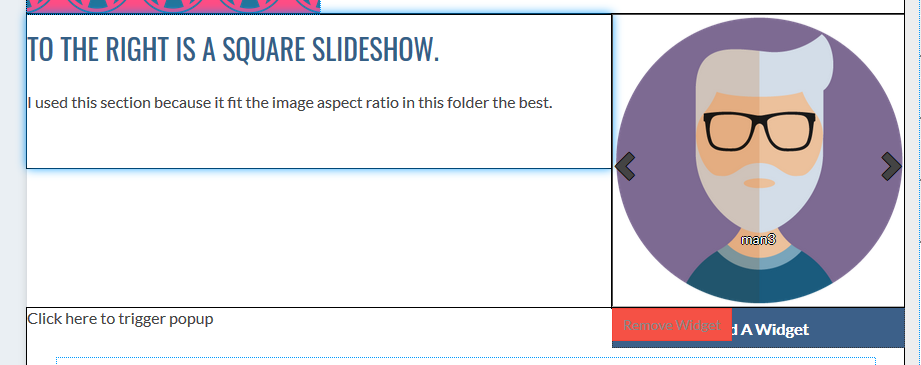
Image Gallery
Please be aware that the Image Gallery widget does not have an upload feature . You must upload the images to the site before you add the widget. You may do this either with the MEDIA tab in the Sandhills CMS or by clicking the MEDIA tab in the backend of WordPress. See the MEDIA section below for more instructions.
The image gallery will create a dynamic grid of images on a page. You can use this to create any grid of photos you choose. There are even ways to add links to the photos so that you can use them as buttons on the site. This is especially helpful if you are using the tool to create a grid of manufacturer logos.
In WordPress, there’s no way to organize photos. They’re all just held into one big bucket. This makes it very easy to use photos across the site in multiple ways, but there’s no way to have predefined groups of photos. At least not natively. Without predefined groups, we have to sort through all the images and individually select the ones you need for this page’s Image Gallery.
-
To
add a photo to the gallery
, just click on each image to select it. You will see a green border and background around it as well as a checkmark in the box to designate that it is selected. Click it again to deselect it.
-
Select your Grid size
(6,4,3,2, or 1 image across). In this case I have 7 images selected and a grid of 4. So it will do the first 4 images in the list and wrap to a new line with the last 3 images.
-
The aspect ratio
is the last thing you will need to select. There are several sizes predefined that you can choose from. If you select one, it will scale the image to fit nicely in that proportion. It does this by setting the image as a background image then adding a clear .PNG of the correct proportion as the foreground image. This image will stretch to fit its container and display as much of the background image as possible. When a user clicks one of the images in the grid, it will display in a light box and show the full image as large as possible.
If you don’t like the standard sizes here, you may select Unchanged which will not crop the images. Be aware that the images will NOT have standard sizing unless all your image are identically sized and this may create irregular spacing.
You may also designate your own ratio that better fits the page or your images. It will work identically to the pre-defined images, but will use the ratio you select.
- Once you have all the images and options selected, just click the “Add Widget” button and your Gallery is added to the page. It will scale to fit the Layout Area it is in using the selected grid.
Slideshow
The set-up window is virtually identical to the image gallery widget above, but the photos you select will populate a scrolling slideshow instead of a grid of photos.
The big thing here is selecting the correct aspect ratio. The photos will scale to fit the container (usually width), then crop the overlapping image off.
Smart Slider
This widget is another simple one. It just gives you a list of Smart Slider Slideshows and lets you choose one to add to a page. This is mainly just to make your life easier by not having to mess with the shortcode.
To add a Smart Slider widget, just click the ADD A WIDGET button and choose SMART SLIDER from the MEDIA tab.
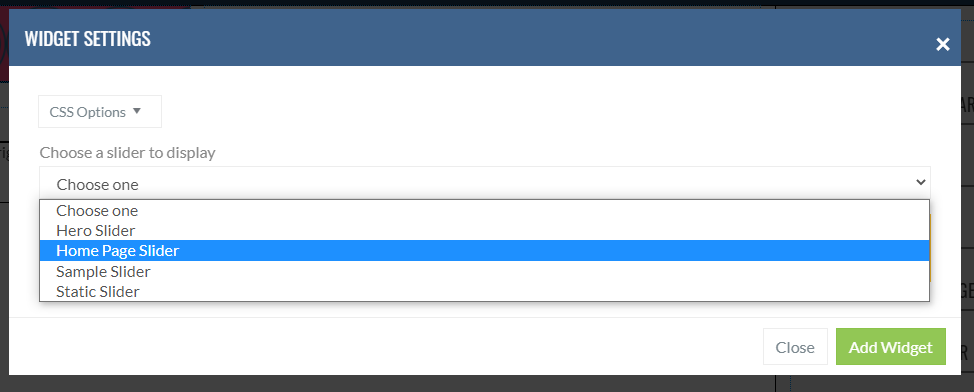
Just choose the correct slideshow name from the list in the Widget Settings window and click ADD WIDGET. The drop down list is dynamically generated from all of the titles of your Smart Slider slideshows.
The first time you add a Smart Slider to the page, it most likely will not load after you insert it.
You will just see the shortcode for the slider. Please save the page and you will see it render in the correct location.
Post Widgets
Posts Widgets are anything that uses serialized content to output a group of pages or elements. Anything that WordPress would consider a Post. This includes Custom Post Types, Blog Posts, etc.
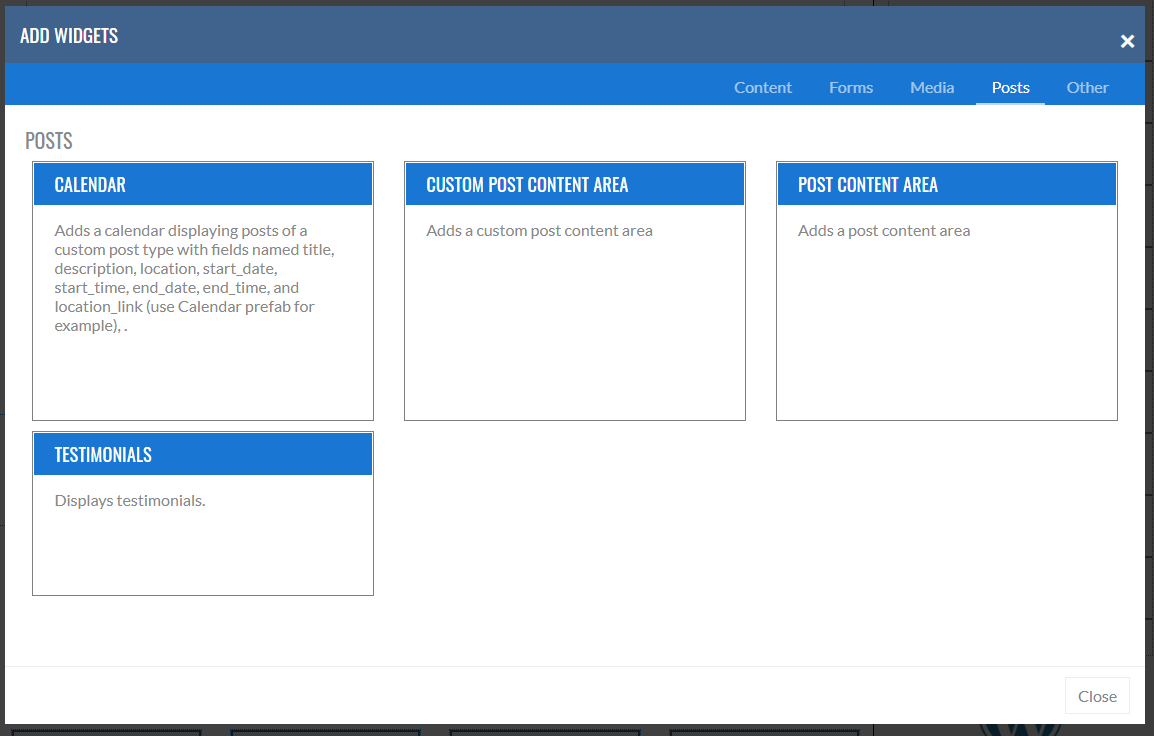
Calendar
The Calendar is a two-part system. It starts with a Custom Post Type that customers will use to enter events into the calendar and are displayed on the front of the site in the Calendar widget. This was designed mainly for auction customers, but can be used for any events your customer may have.
STEP 1: Create Calendar CPT
Go to SETTINGS > CUSTOM POST TYPES and add the CALENDAR Prefab CPT. Instructions to create and modify the CPT are here .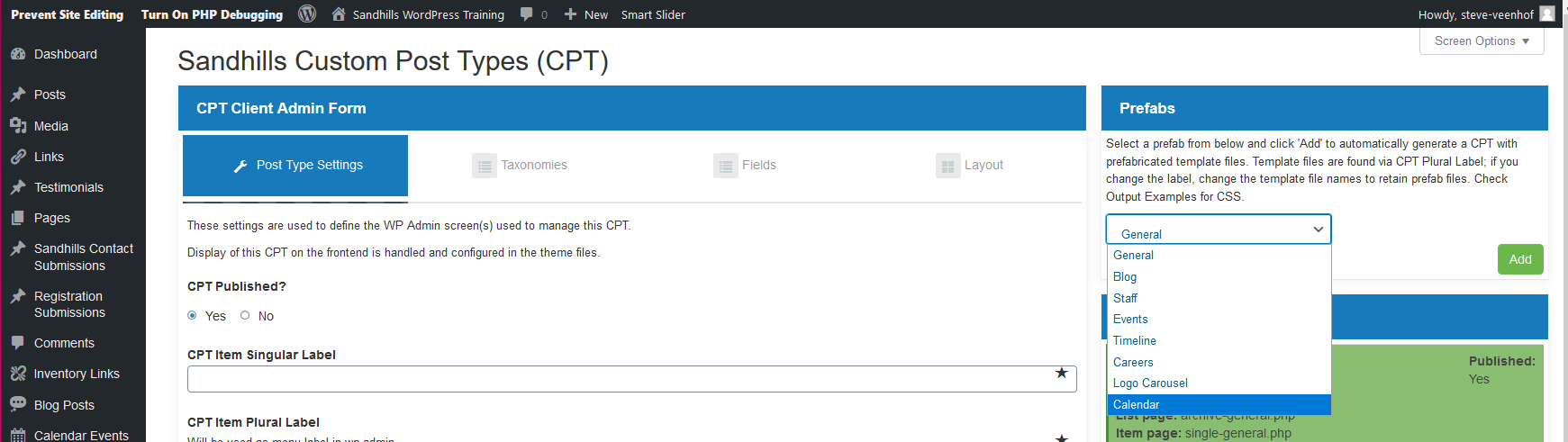
STEP 2: Create some Calendar Events
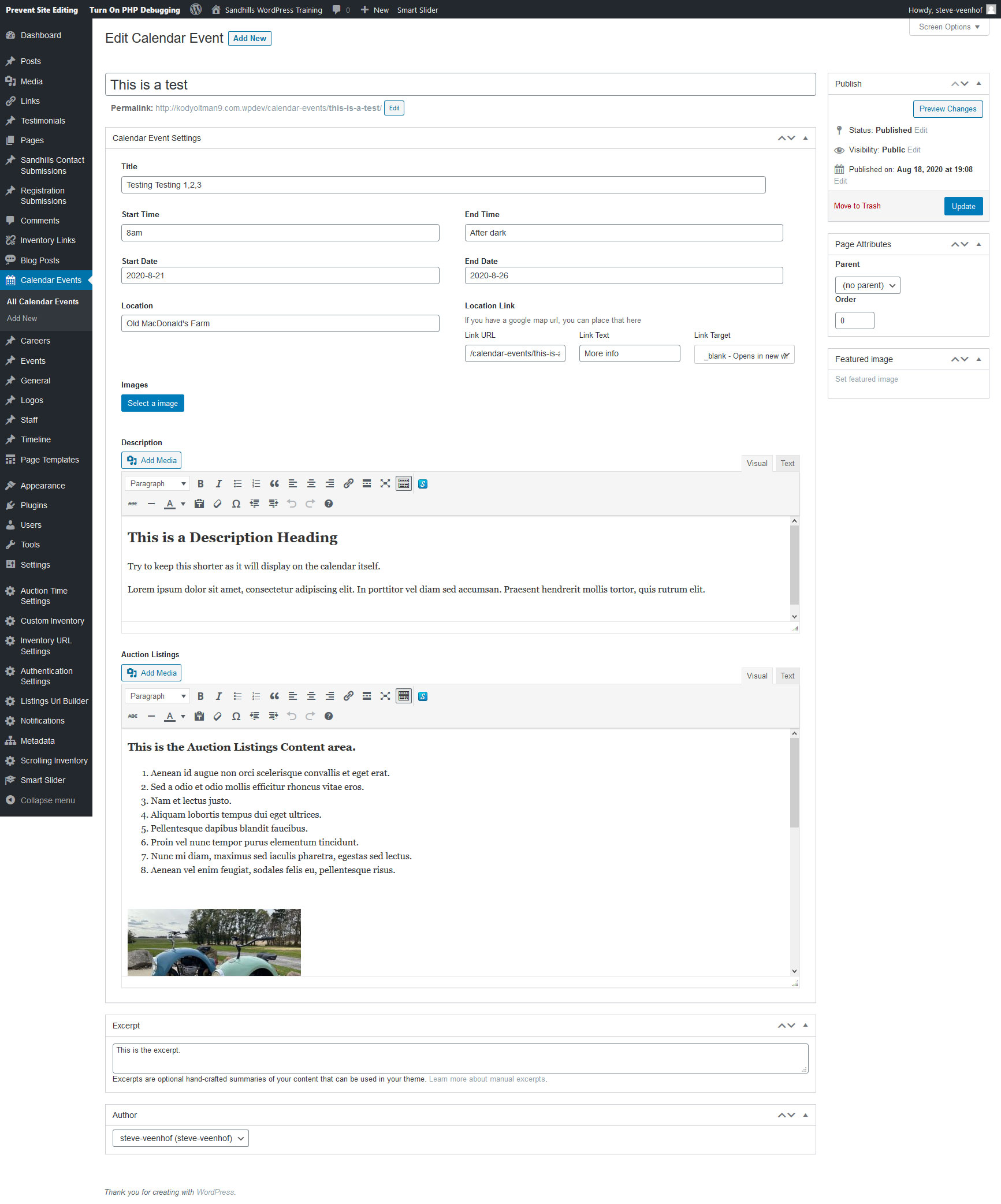
Above is the default fields available in the Calendar CPT. You can certainly alter the CPT to make sure all the fields you need are included. Just make sure to leave the date picker fields or it won't show in the calendar.
Step 3: Add Widget to Page
Just click the ADD A WIDGET button and choose the CALENDAR from the POSTS tab.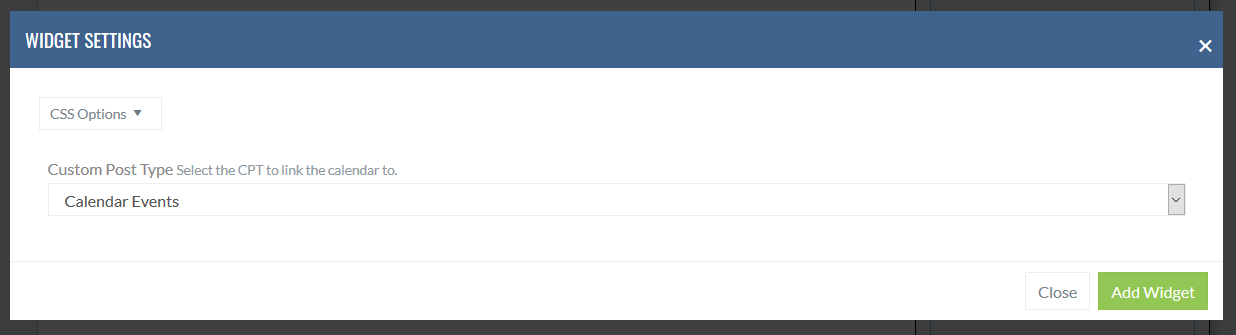
The settings are pretty simple. If you have multiple Calendar CPTs, you may choose which CPT gets displayed in this calendar by selecting it from the dropdown. Click ADD WIDGET to add the calendar to the page.
NOTE:
The page will will likely look like the calendar didn't get added after you click ADD WIDGET. Save the page and the Calendar will render in the proper place.Below is what the default Calendar will looks like
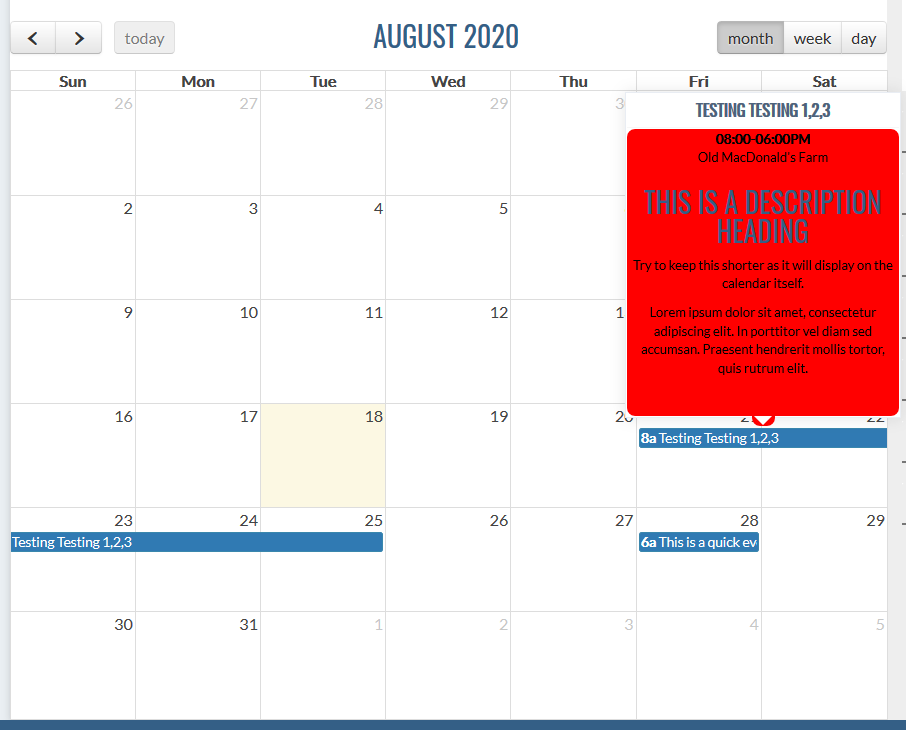
Now that you've seen the whole process, there are a few things to note:
-
You will obviously want to style the pop-up to match your site.
-
The
DESCRIPTION
box shows up in the mouse-over bubble, so keep it somewhat short.
-
The
AUCTION LISTINGS
only show up in the event's SINGLE page (details).
-
The
LINK
you set up will be activated when you click on the blue bar in the calendar. If you want it to go to the event detail page (or single view for the CPT), you'll need to give it the relative link from the SLUG
.
EXAMPLE : /calendar-events/name-of-event .
- The START TIME & END TIME are just text fields that can be anything. The calendar only cares about dates.
Custom Post Content Area
This is a widget that will allow you to output CPTs in the content area. The output is heavily styled, so you can change the look and feel of your data easily.
STEP 1: Create your CPT and add some content
Go to SETTINGS > CUSTOM POST TYPES and create your CPT. THis tool works with both Custom and Prefab CPTs. Instructions to create and modify CPTs are here .STEP 2: add the widget to your page
Just click the ADD A WIDGET button and choose the CUSTOM POST CONTENT AREA from the POSTS tab.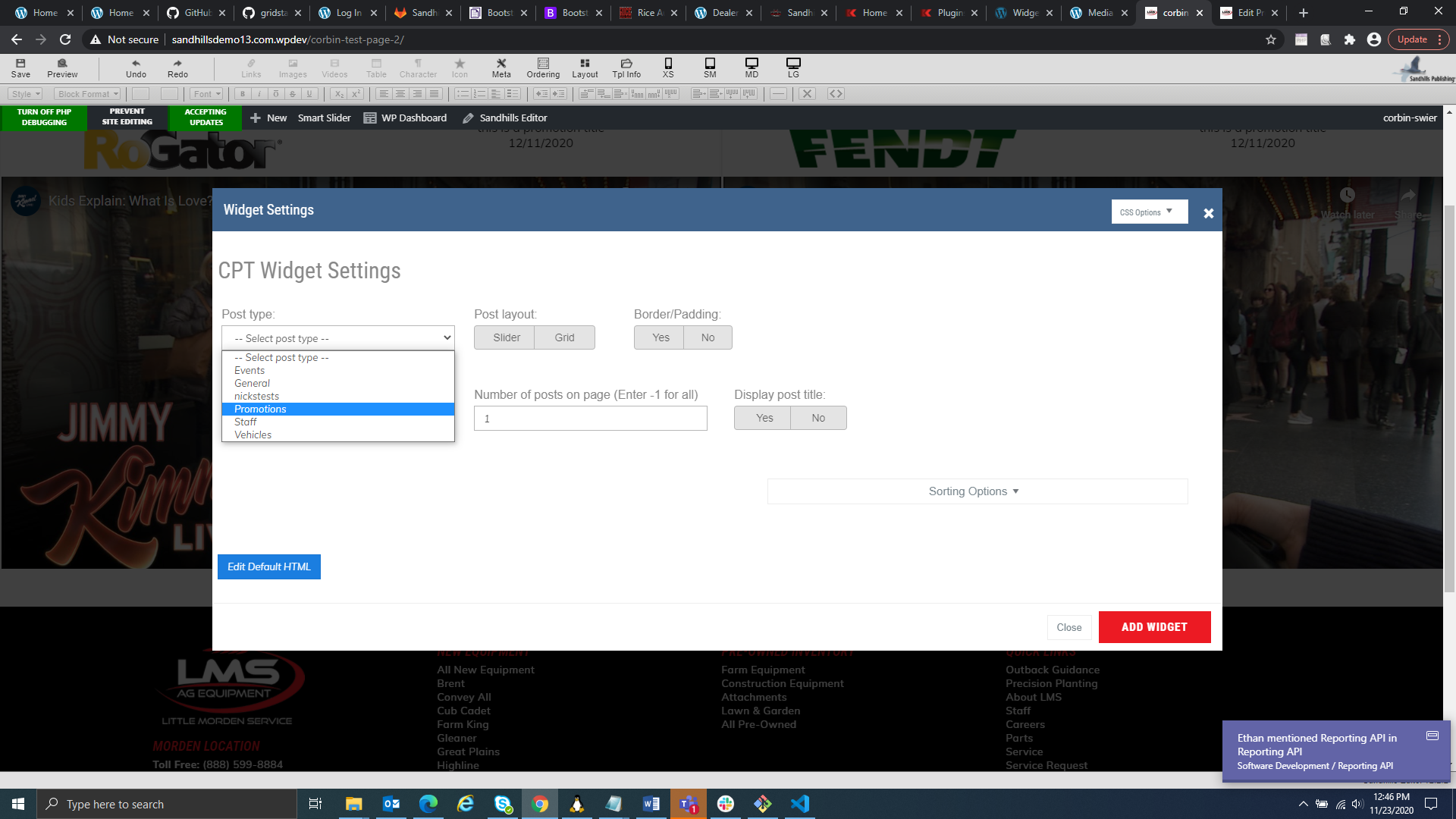
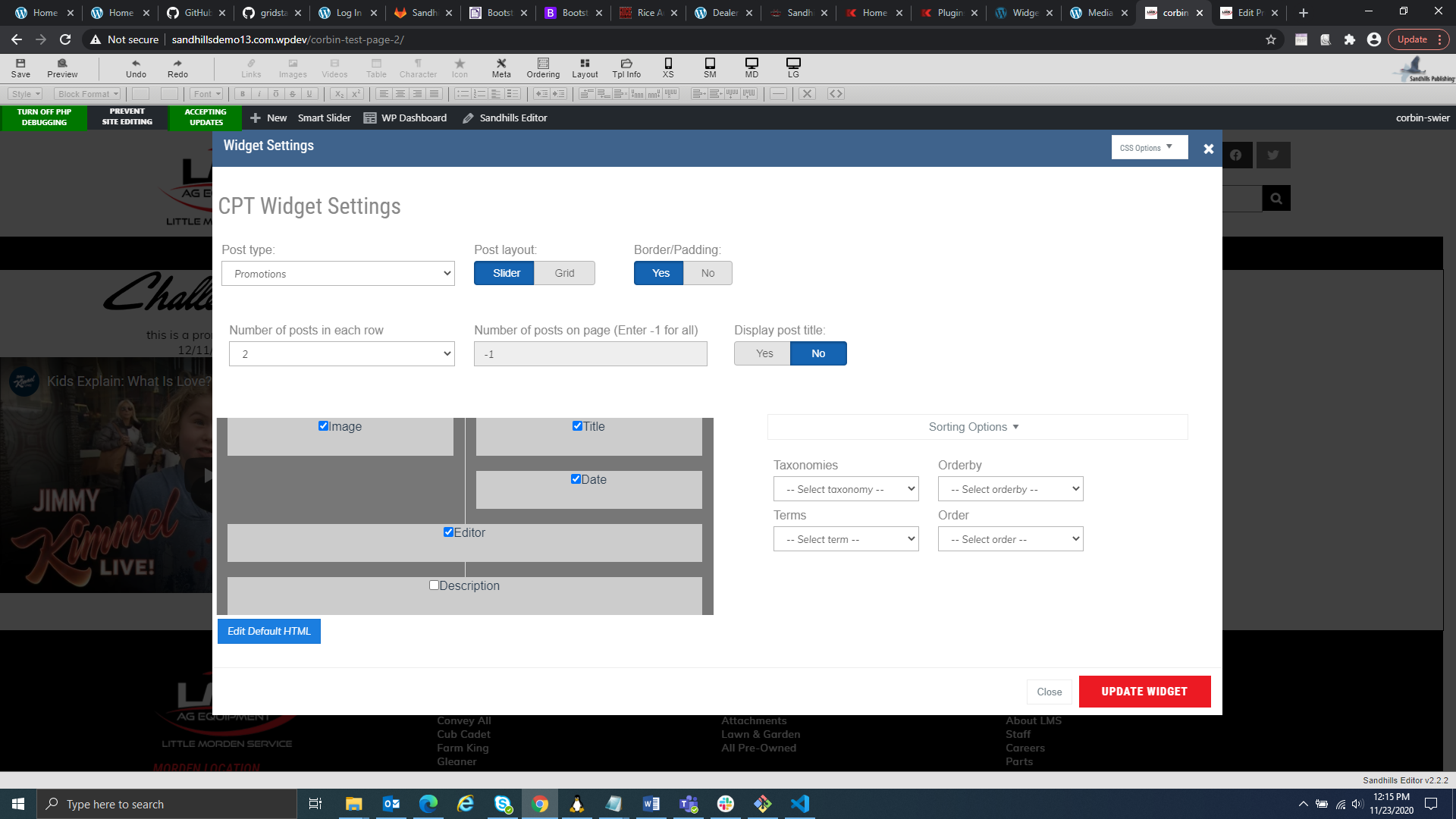
Post Layout
here you can chose the post layout to be a slider or a grid.I am choosing the slider option for this example.
Border/padding
This is a setting that gives you the option to quickly style the post's container. It adds some padding around the post container, and adds border styling. If you want to customize the container yourself, you can just check no.NUMBER OF POSTS IN EACH ROW
This is where you set your grid. You can choose up to 4 posts per row. I am going to chose 2 post for this example.Number of Posts on each page
This is the total number of posts to display on the page. Use this in conjunction with the Number of posts in a row field to determine how big you want this section to be. If you would like to show ALL posts, enter -1 (negative one) into the box.In this case, the slider requires all posts on the page so it can increment through them.
Post Content to display
This is where you can select which data is displayed and rearrange the data to output in the order of your choice. The items in the list are based on the fields in the CPT you selected.Put a check in the box next to any data you would like to output inside the widget. Drag and drop the items around to order the data, just like the contact form.
Editing the default html for your posts
you can click on the button right underneath the content layout settings to edit the default html.
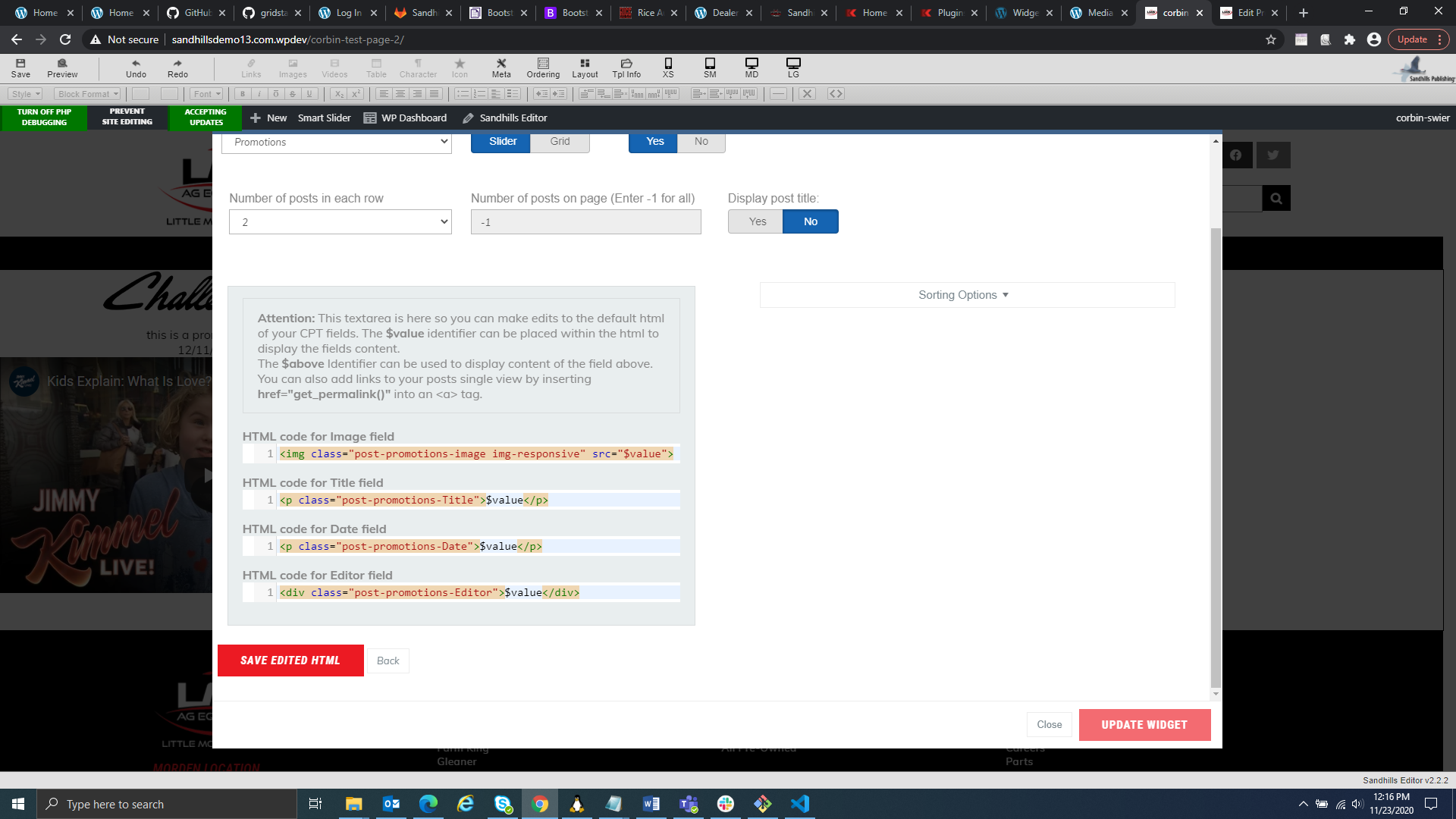
You can add whatever html and text you would like each post to display. Each text area contains html content for each cpt field. text areas will only populate for the fields you check in the post content display settings. you can place the $value identifier anywhere within the field text area to display that fields content. you can also use the $above identifier to display the content from the field text area above. This is there, for example, so you can combine a link field with an image field to open a link by clicking on an image.
Taxonomies
If your CPT uses Taxonomies (categories), you can use this (or not) to filter your listings.Terms
If you are using Terms to tag the posts, you can choose those here to filter content.Here is what the above settings look like with default styling.
Post Content Area
This is basically for blog-type posts. It is very similar to the CPT Widget above, but for generic WordPress posts. This was specifically developed as a way to make recent NEWS or BLOG listings available on the home page for customers who are familiar with WordPress and want to use the standard editor for their blog.
There are no special tools to add posts, as this uses default WordPress posts.
add the POST CONTENT widget to your page
Just click the ADD A WIDGET button and choose the POST CONTENT AREA from the POSTS tab.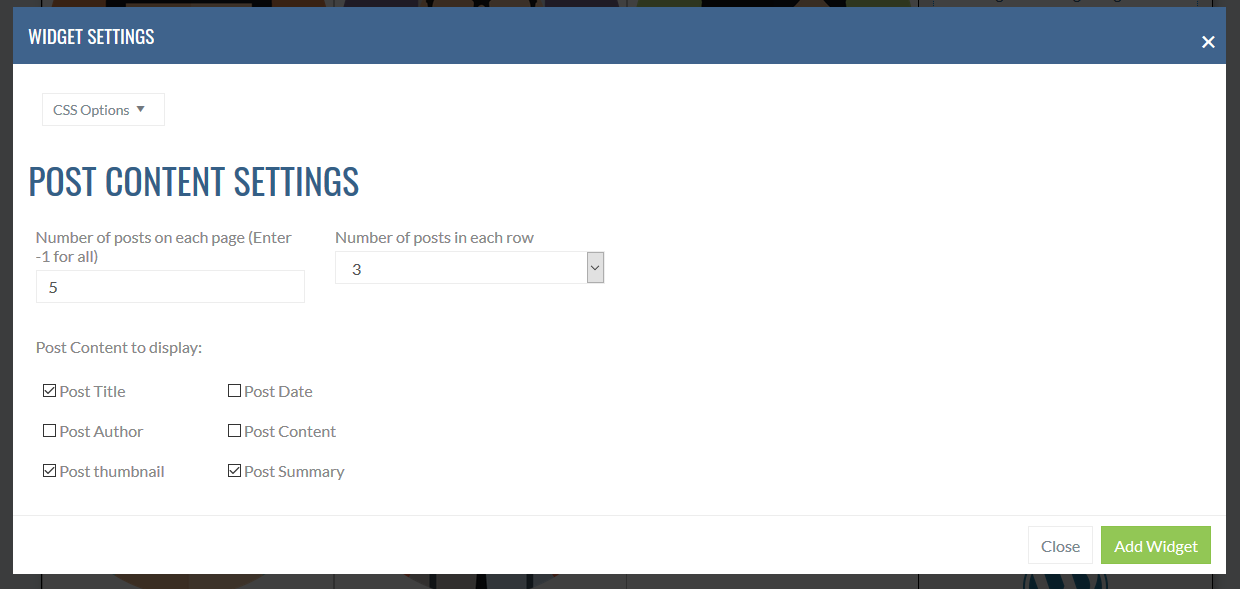
These post output will pretty much be set up by the files in your Theme. All we are doing is controlling the number of listings and which of the standard data that you want to show on the page.
Number of Posts on each page
This is the total number of posts. Use this in conjunction with the next field (Number of posts in a row) to determine how big you want this section to be. If you would like to show ALL posts, enter -1 (negative one) into the box.Number of posts in each row
This is where you set your grid. You can choose up to 4 posts per row.Post Content to display
This is where you can select which data is displayed on each listing. The items in the list are based on standard WordPress post fields. Put a check in the box next to any data you would like to output inside the widget.Testimonials Widget
This widget is technically just a specialized Custom Post Type. It requires both back-end and front-end editing. You enter the actual testimonials in the backend of WordPress like a traditional WordPress plugin, but you add the testimonials to the front end of the site by adding a widget.
Testimonials Backend
To add a testimonial, go to the dashboard and click the testimonials tab on the left. There will be a list of all testimonials added to the site, as well as a button to add new testimonials. Click Add New.Fill out the information on the form to match your design. If no content is filled out, the field will not be displayed on the front end. All options can by rearranged or prevented from outputting in testimonials.php and styled in testimonials.css. More info on that below.
-
Enter
Title Here
This is the title that appears on the top line of the testimonial below the stars by default.
-
Cont
ent area
This is the bulk of the testimonial itself. The style applied by the editor does show up in the output.
-
Name
This is the name of the reviewer and comes next. By default it’s big and bold by default.
-
Title
Comes under the name, italicized by default.
-
Relationship
Comes under the title, italicized by default.
-
Rating
This is a 5 star system. The number you give it is the number of stars it outputs. (The higher the better). This actually displays above all text on the testimonial by default.
-
Image
Browse and upload an image. It will display at the top of the testimonial by default.
-
Website
Adding this will link the whole testimonial to a specified URL. Be sure to include the http:// if it goes outside the current site.
Testimonials Widget
Super basic widget. It just inserts the placeholder that renders the testimonials. Choose which category you would like to display on the page (All and uncategorized are also included) and click the Add Widget button. Done!Be aware that if there are no testimonials saved in the backend, it will NOT look like the widget is working. It is. It just has no content, and so it is completely collapsed. It’s best to add a few testimonials in the backend before adding a widget to the page.
Modifying Testimonials
We know that no two testimonials sections are ever designed to look the same. To that end, we have given you access to the file that builds the output in PHP and the specific CSS file for this widget.
The files can be found in the WIDGETS folder inside your account folder. Both are fairly well commented so you can understand what builds what.
The testimonials.php file will allow you to cut, paste, copy and delete the individual sections of the testimonials widget so that it has the perfect amount of information, in the perfect order. You can also add or change the structure of the testimonials in the file. Feel free to update this file however you would like. Some people even add carousels to the testimonials to create moving slideshow of glowing customer reviews.
The testimonials.css file has all the classes that make up every different part of the testimonials widget. They are fairly clearly labeled, but if you have questions, just inspect the output in your browser and you should be able to figure out which classes affect each section of content.
Other Widgets
This is the catch-all for specialized widgets or things that just won't get used much. There's nothing wrong with these widgets, we just keep them out of the customer's way as they won't apply to 95% of our customers.
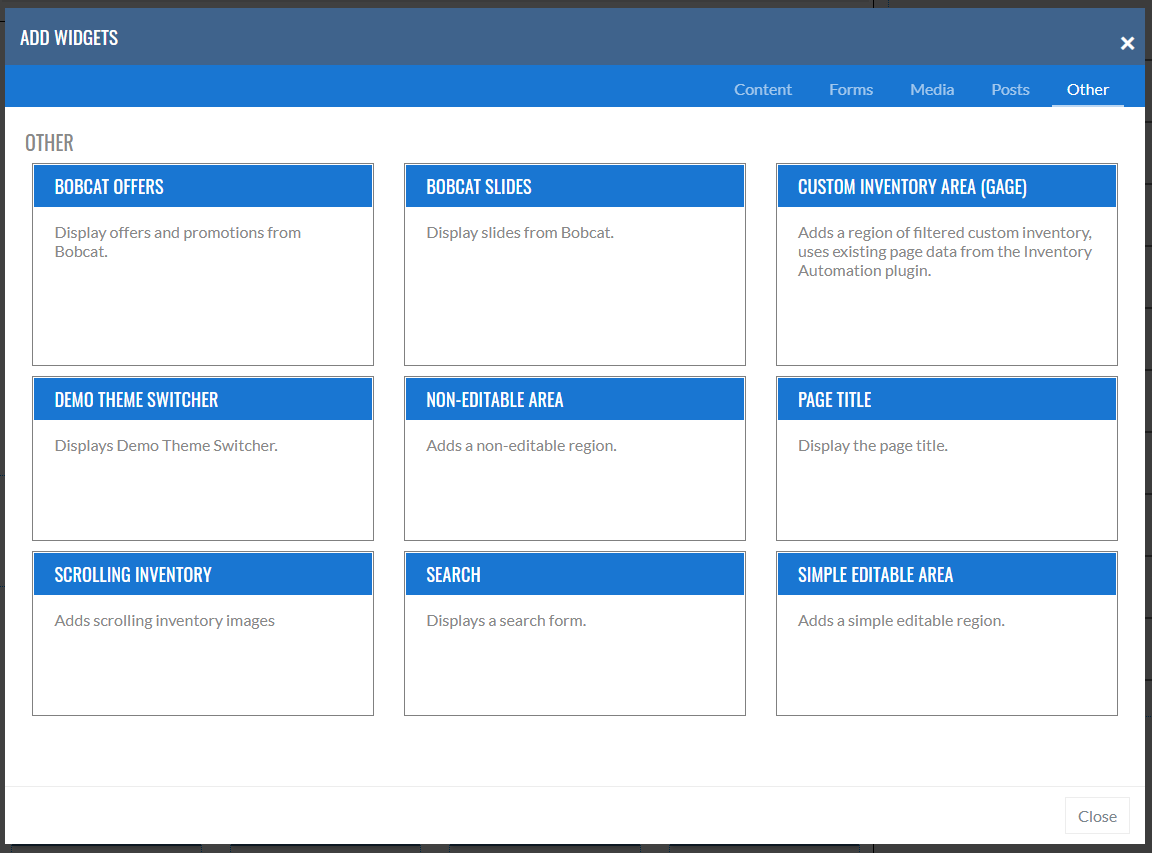
Bobcat Offers
This is the Special Offers page specifically for Bobcat sites. It pulls offers from a central location that is updated monthly based on new offers from Bobcat.Example: https://www.sandhillsdemo1.com/special-offers/?theme1
Bobcat Slides
This is the home page slideshow specifically for Bobcat sites. It is a Smart Slider that pulls offers from a central location that is updated monthly based on new offers from Bobcat.Example: https://www.sandhillsdemo1.com/
Demo Theme Switcher
This is really only used on http://sandhillsdemo1.com to switch between available Bobcat themes.Custom Inventory Area (Gage)
This is for custom inventory sites only. It will display featured inventory from custom listings.Scrolling Inventory
Adds the traditional scrolling inventory from HTML sites to the page. Instructions are here .Search Form
Make finding info on sites easy by adding a search form. This is the default WordPress search form transformed into a widget that can be inserted into any Layout Area. Just add it to the page and it should work automatically! You may have to set up the search results page.Simple Editable Area
This drops a text-only area on the page. Use with Editor Classes to create a styled content area that customers can only change text in, but not styling. Not used often.Non-Editable Area
This drops a area on the page that is basically uneditable. The only tool in the editor that works is the HTML view. It was originally designed to create areas in the editor that customers couldn't edit. This has basically been replaced with the FILE widget. Not used often.Page Title
This just displays the page title on the page. Use Editor Classes to style the text. Not used often.Adding Widgets
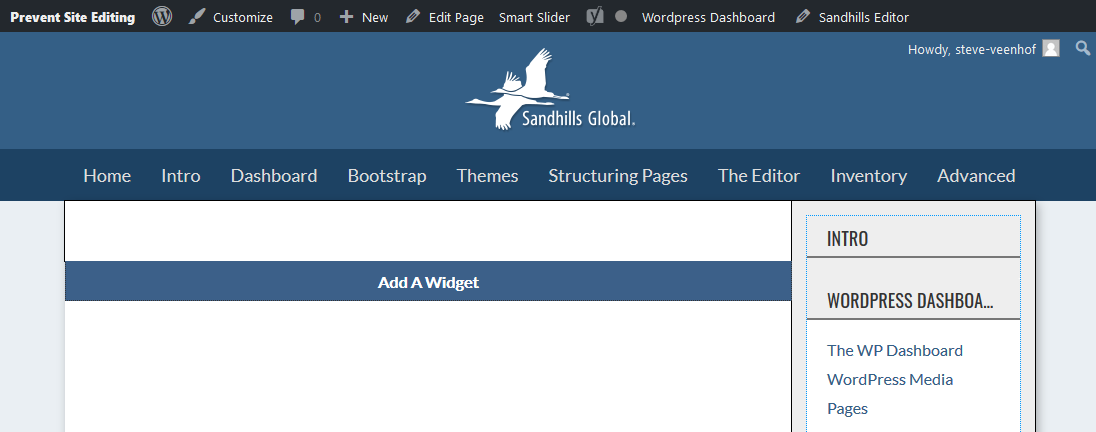
Adding Widgets is simple. Make sure you are in edit mode by clicking the “ Sandhills Editor ” Icon at the top of the page.
Hover your mouse over the Layout Area you would like to add a content Widget to. You should see an “Add a Widget” button show up at the bottom of the Layout Area as your mouse moves over each Layout Area.
If the page is new, there will only be one layout area that will span the width of the content area. If you have multiple layout areas, move your mouse around to each and see that you get unique "Add a Widget" bars in every section.
If you already have widgets inside the layout area you would like to add a widget to, you will see an EDIT WIDGET and a REMOVE WIDGET button sit on top of the "Add a Widget" button. You will have to wait a second for those to disappear before you can click the "Add a Widget" button.
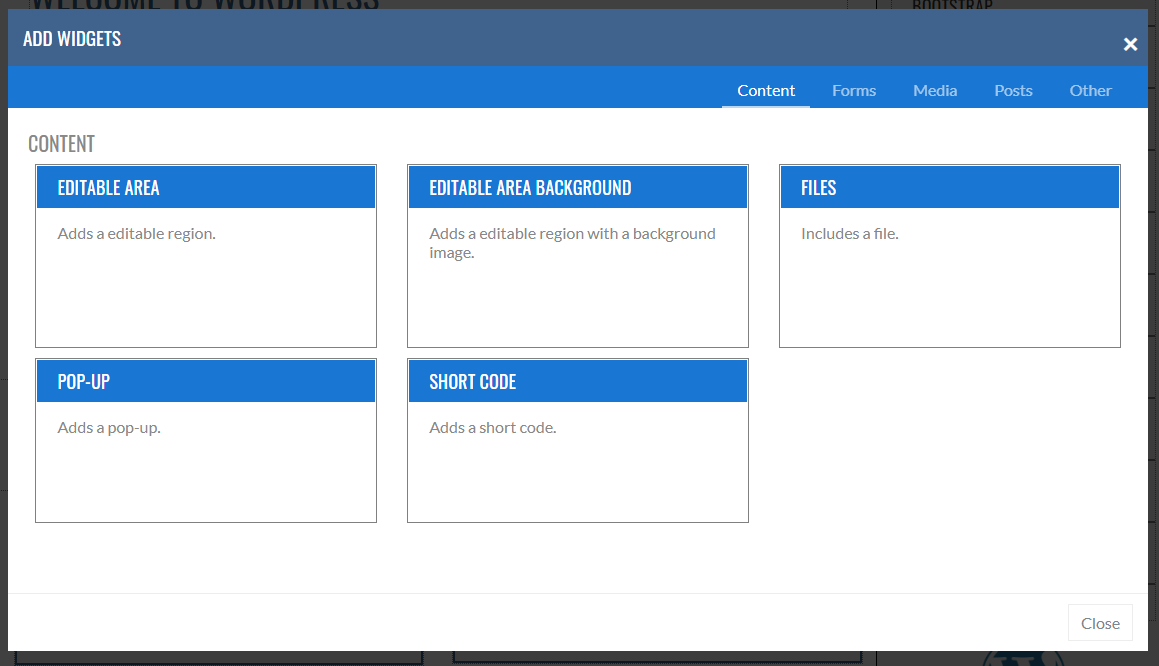
When you click the “ ADD A WIDGET ” button, you will get a pop-up that is divided into tabs that house different groups of widgets. Choose the widget you would like to add and the settings for that widget will pop-up.
Editing and Deleting Widgets
Editing and deleting widgets is as easy as adding them. When you hover your mouse over a widget, the Edit Widget & Delete Widget buttons appear below that widget on the left. They will hover over any content below this widget, overlapping it. They will hover there for a few seconds and then go away.


Some widgets that are very simple will also not be editable, such as testimonials, search boxes, Short Codes, etc. These usually only have 1 setting and it’s easier to just delete them and re-add them with the new settings.
The Edit Widget button will open up the widget settings dialog box so you can change any setting described above (such as background images, widget sizes, etc.). It’s just like adding a new widget, but all your existing settings should be preloaded in the widget when you open it.
The Delete Widget button will delete the widget permanently. There’s no getting it back. But don’t worry, we do make sure you want to delete the widget before it’s just gone.